Docker Compose for DevOps Engineers
Docker Compose
Docker compose is a tool that was developed to help define and share multi-container applications.
With compose, we can create a YAML file to define the services and with a single command, can spin everything up or tear it all down.
YAML
YAML is a data serialization language that is often used for writing configuration files. Depending on whom you ask, YAML stands for yet another markup language or YAML ain't markup language, which emphasizes that YAML is for data, not documents.
YAML is a popular programming language because it is human-readable and easy to understand.
YAML files use a .yml or .yaml extension.
TASK-1
Learn how to use the docker-compose.yml file, to set up the environment, configure the services and links between different containers, and also to use environment variables in the docker-compose.yml file.
Docker compose is a tool used for defining and running multi-container docker applications.
It uses a 'docker-compose.yml' file to configure services, networks and volumes required for your application stack.
You can also use environment variables in the 'docker-compose.yml' file for flexibility and configuration management.
Here's a step-by-step guide on how to use Docker Compose effectively:
Install Docker-compose
ubuntu@ip-172-31-89-227:-$ sudo apt-get install docker-composeCreate a 'docker-compose.yml' File
version: '3.9'services:
web:
image: "django-todo-app:latest"
ports:"8000:8000"
Build and Run:
After defining your services and configurations in the
docker-compose.ymlfile, you can build and run your multi-container application using the following commands:# Build the images and start the containers
docker-compose up
# Build and run in detached mode (in the background)
docker-compose up -d
# Stop and remove containers
docker-compose down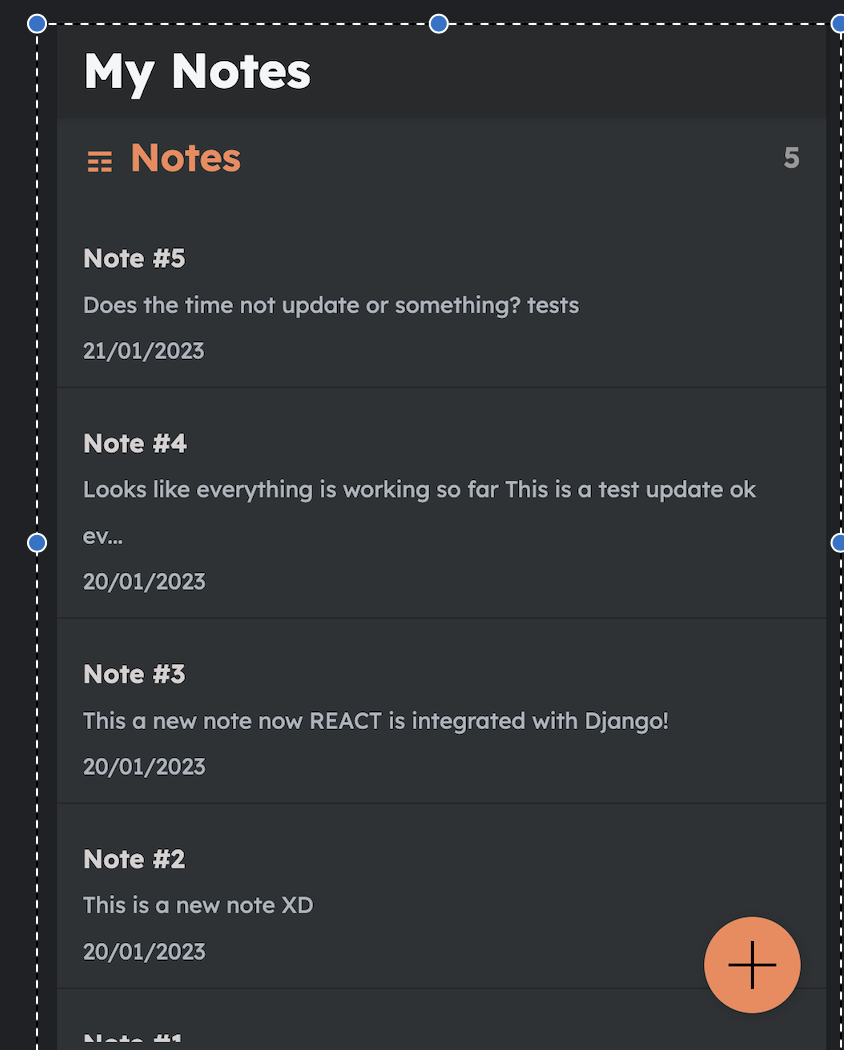
Pushing the image to dockerhub
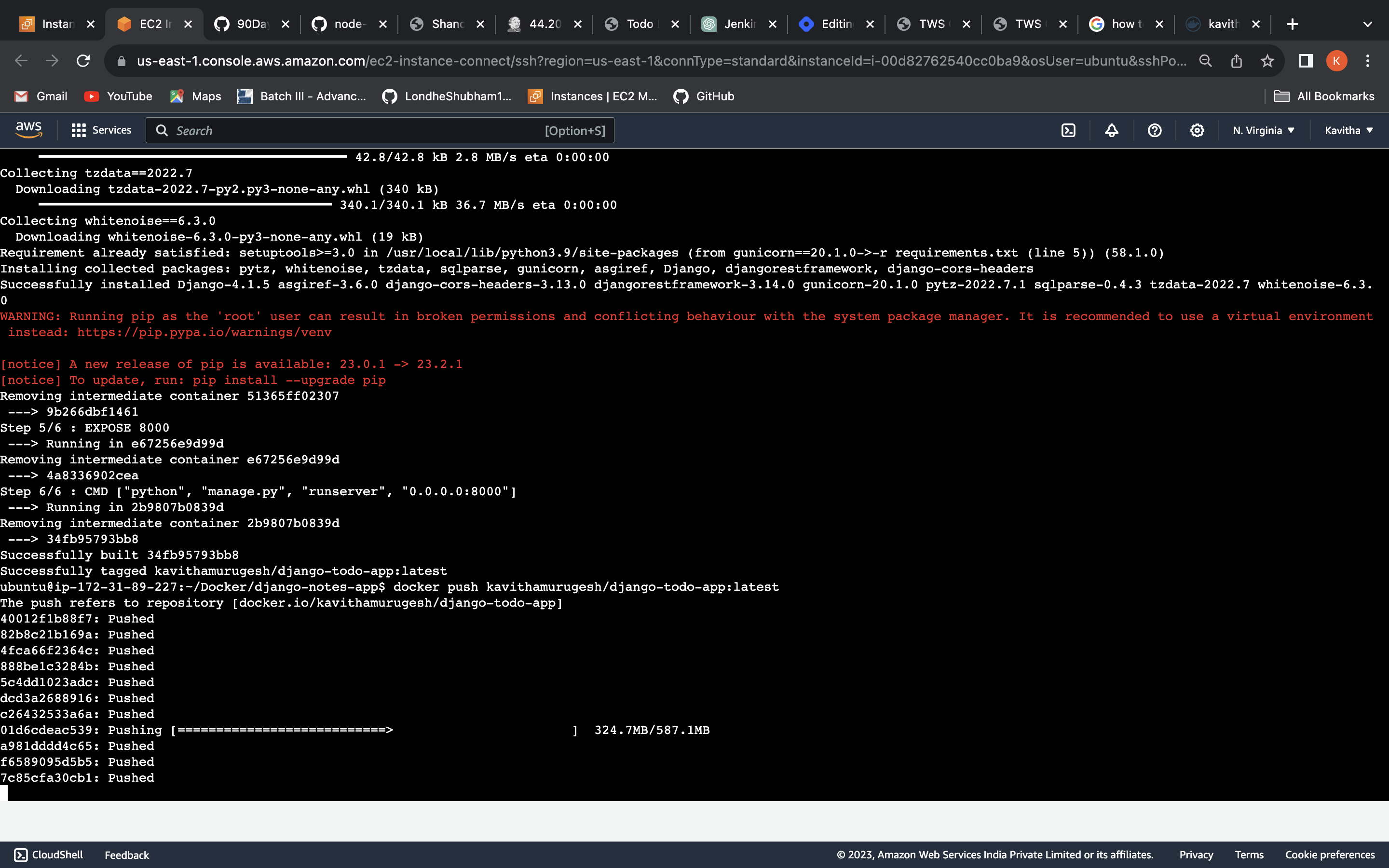
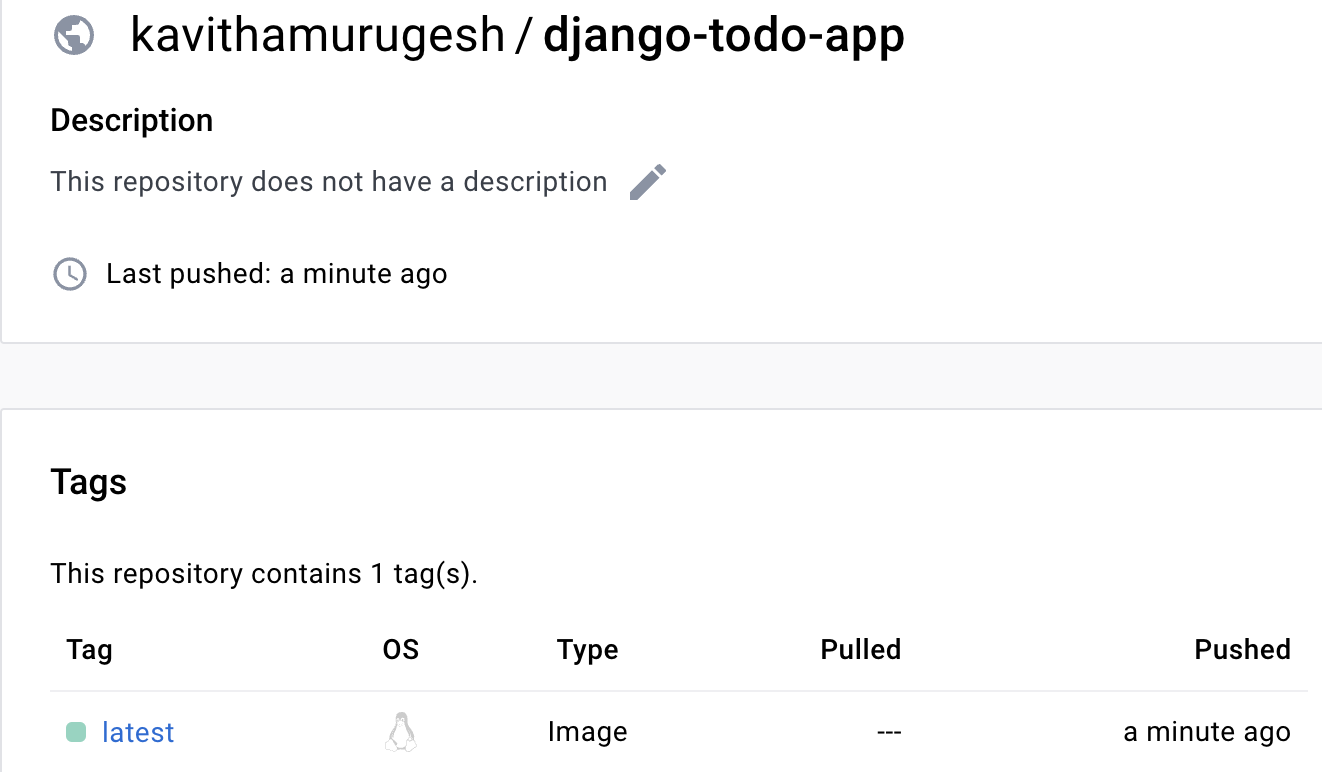
Task-2
Pull a pre-existing Docker image from a public repository (e.g. Docker Hub) and run it on your local machine. Run the container as a non-root user (Hint- Use
usermodcommand to give user permission to docker). Make sure you reboot instance after giving permission to user.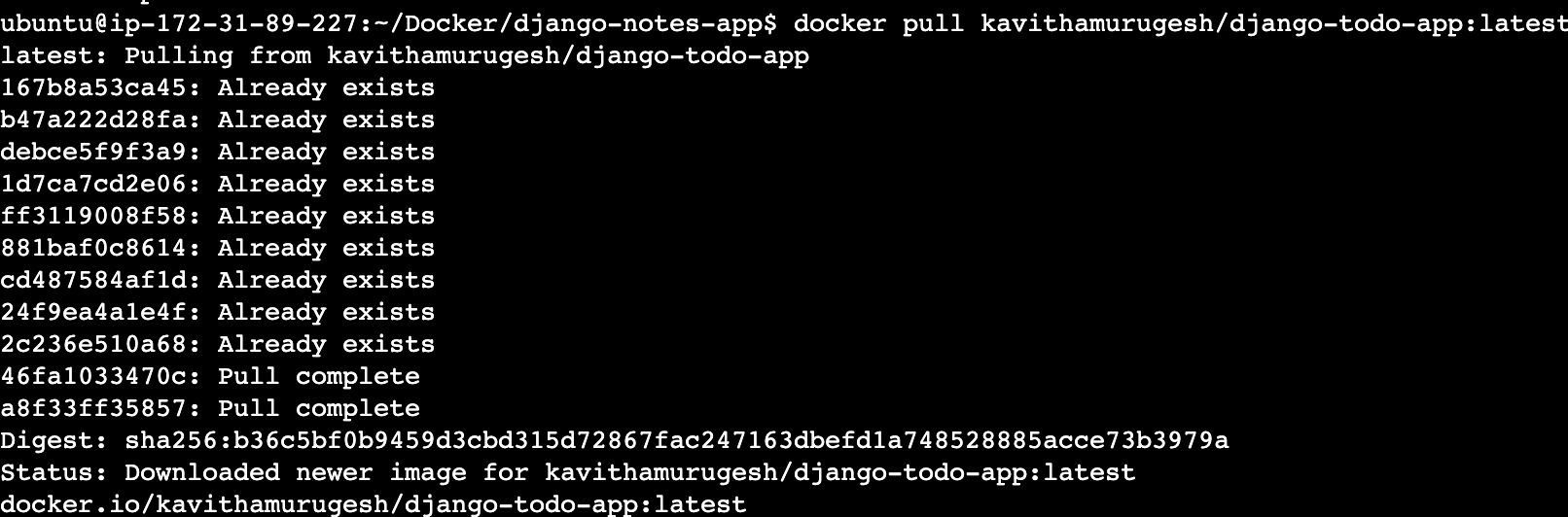
Inspect the container's running processes and exposed ports using the docker inspect command.

Use the docker logs command to view the container's log output.

Use the docker stop and docker start commands to stop and start the container.


Use the docker rm command to remove the container when you're done.
